
100% Local Audio Cutter & MP3 Cutter · 0 Uploads · Free
Audio Cutter & Converter
Need to cut an MP3 ringtone, trim dead air from a voice memo, or pull a clean audio quote from an MP4 video without uploading private recordings to a cloud server? Drop any audio or video file up to 100 MB to trim with 0.1s precision, apply smooth fade-in/out, and export MP3, WAV, or M4A locally in your browser via FFmpeg WebAssembly.
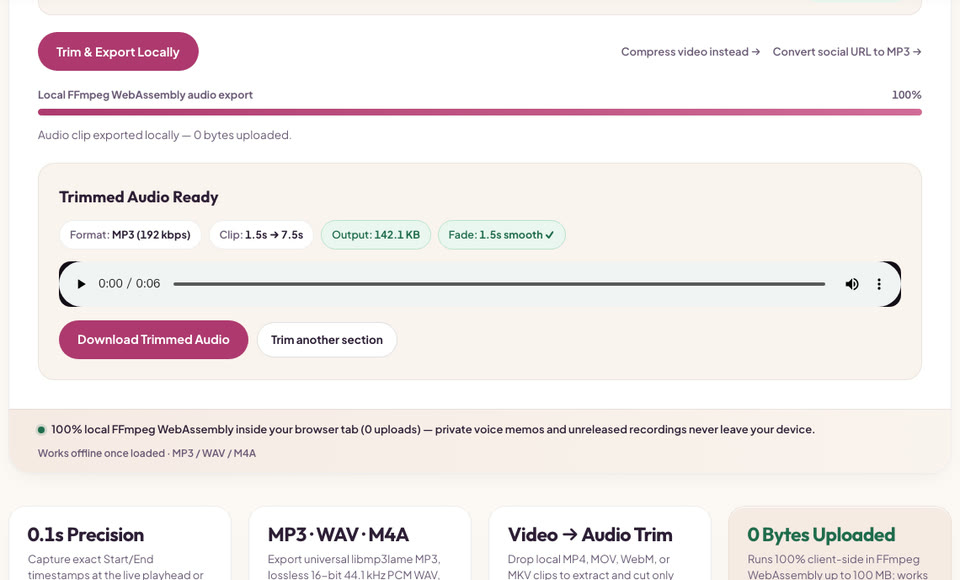
Trimmed Audio Ready
Capture exact Start/End timestamps at the live playhead or type decimal seconds directly.
Export universal libmp3lame MP3, lossless 16-bit 44.1 kHz PCM WAV, or Apple-native AAC M4A.
Drop local MP4, MOV, WebM, or MKV clips to extract and cut only the audio slice you want.
Runs 100% client-side in FFmpeg WebAssembly up to 100 MB; works offline once cached.
How to Cut MP3 & Trim Audio Online in 3 Steps
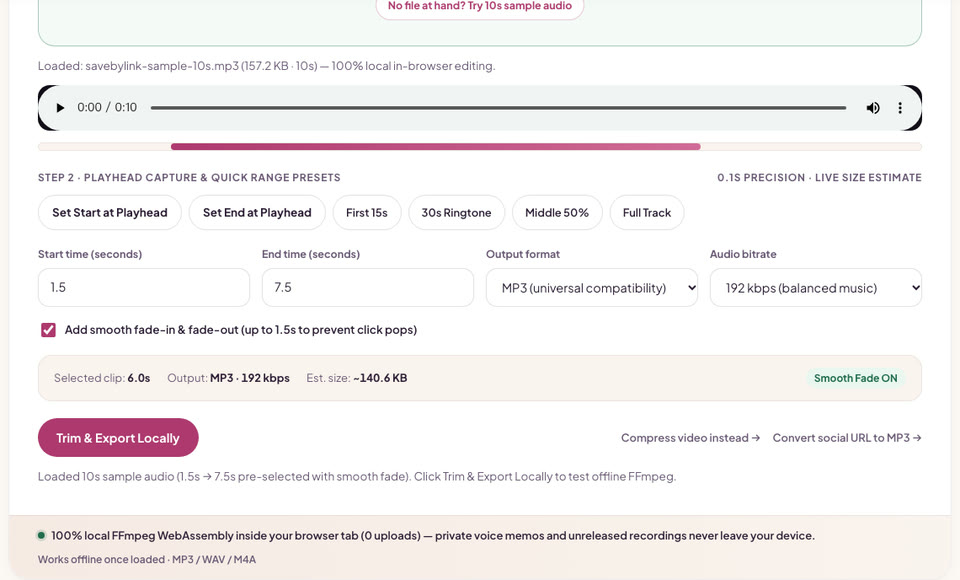
- Load an audio or video file (or tap Try 10s sample audio): Drag any MP3, WAV, M4A, AAC, FLAC, OGG, MP4, or MOV file (up to 100 MB) into Step 1—or click No file at hand? Try 10s sample audio to test the entire offline workflow immediately. SaveByLink loads the waveform into your device’s native player locally with 0 uploads.
- Mark exact Start and End seconds with playhead capture: Listen to your clip and press Set Start at Playhead and Set End at Playhead (or tap a one-click preset like 30s Ringtone or Middle 50%). Inspect the live selection bar and estimated output file size, and check Add smooth fade-in & fade-out to eliminate abrupt digital pops at the cut edges.
- Choose MP3, WAV, or M4A and export locally: Pick universal MP3 (128/192/320 kbps), Apple-friendly M4A (AAC), or uncompressed 16-bit 44.1 kHz WAV, then press Trim & Export Locally. FFmpeg WebAssembly renders your trimmed audio inside browser memory so you can preview and save it straight to your phone or computer.
Cut MP3 Online Without Uploads: Why Local FFmpeg Beats Cloud Trimmers
Most free "online MP3 cutter" websites force you to upload raw podcast interviews, client voiceovers, or personal voice memos to an opaque third-party server before you can even move a trim handle. Beyond slow upload waits and aggressive popup ads, cloud audio trimmers expose private audio to remote server logs, enforce arbitrary 10-minute quotas, or silently downsample stereo music to muddy 96 kbps mono.
SaveByLink takes the exact opposite approach: once your browser caches the ~31 MB FFmpeg WebAssembly core on the first run, every decode, cut, afade ramp, and encode executes 100% locally in your browser sandbox (0 uploads). Your file never leaves your device, trimming works even if you switch to Airplane Mode after loading, and you have direct control over real FFmpeg encoders (libmp3lame, pcm_s16le, and native AAC).
MP3 vs. WAV vs. M4A Output Format Comparison
Choosing the right export container and bitrate avoids unnecessary file bloat or extra generation loss during downstream video editing. Use the engineering comparison below to select the ideal target.
| Output Format | Codec & Spec | Approx. Size / Min | Best Use Case | Bitrate Control |
|---|---|---|---|---|
| MP3 (Universal) | libmp3lame · 44.1 kHz stereo | 0.96–2.4 MB/min | Android ringtones, car USB, podcasts, web sharing | 128 / 192 / 320 kbps |
| M4A (Apple / Mobile) | AAC-LC · MP4 audio container | 0.96–2.4 MB/min | iPhone voice memos, iMovie, GarageBand, compact music | 128 / 192 / 320 kbps |
| WAV (Lossless PCM) | Uncompressed 16-bit 44.1 kHz pcm_s16le | ~10.1 MB/min | Premiere Pro, DaVinci Resolve, CapCut, Audacity mixing | Fixed lossless PCM |
Engineering reality check: exporting a 128 kbps MP3 as WAV or 320 kbps prevents further lossy degradation while editing, but cannot restore high-frequency detail already removed from the source recording.
Technical Specifications, Precision & Honest Boundaries
| Specification | SaveByLink Audio Cutter & Converter |
|---|---|
| Execution Engine | 100% client-side FFmpeg WebAssembly running inside your browser tab (cached after first load; offline-capable) |
| Supported Inputs | Audio (MP3, WAV, M4A, AAC, FLAC, OGG) and Video (MP4, MOV, WebM, MKV) up to 100 MB |
| Precision & Fades | 0.1-second Start/End trimming + playhead capture + automatic FFmpeg afade fade-in/out (up to 1.5s, safely scaled on short clips) |
| Privacy & Storage | 0 bytes uploaded Zero server uploads, zero cloud storage, zero signup, zero daily limits |
| Explicit Boundaries | 100 MB browser RAM cap protects mobile Safari/Chrome from OOM crashes; multi-track DAW mixing or 2-hour lossless stems belong in Audacity or Reaper |
Trim Audio with 0.1-Second Precision & Smooth Fade-In / Fade-Out
Slicing speech or music mid-waveform often creates an irritating digital "click" or harsh drop-off because the audio sample cuts abruptly away from zero amplitude. SaveByLink’s browser audio cutter solves both precision and smoothness in one pass: playhead capture lets you trim audio to the nearest 0.1 second while listening in real time, and toggling Add smooth fade-in & fade-out automatically builds an FFmpeg afade curve at both edges (up to 1.5 seconds, automatically clamped to 35% of duration on very short sound effects so quiet clips never disappear).
For ringtone makers, TikTok/Reels editors, and podcasters trimming intro stingers, the quick range chips (First 15s, 30s Ringtone, Middle 50%) give you an immediate starting bracket that you can fine-tune down to tenths of a second without installing heavy desktop software.
Extract Audio from Video Locally (MP4 & MOV to Trimmed MP3 / WAV / M4A)
You never need two separate tools just to extract audio from video and cut out the 20-second quote you actually want. Drop any local MP4, iPhone MOV, WebM, or MKV recording up to 100 MB straight into Step 1, listen to its audio track directly in the player, mark your Start and End timestamps, and export only that trimmed slice as MP3, M4A, or lossless WAV in a single local FFmpeg pass.
Need to extract audio directly from a public social video URL first? Start with our Video to MP3 Converter or grab an original MP4 clip from our Bluesky Video Downloader—then bring it right back here to trim the exact sound bite.
Private Editing for Podcasters, Journalists, Students & Creators
Journalists slicing embargoed interviews, musicians clipping rough demo hooks, students chopping lecture recordings, and iPhone users converting .m4a Voice Memos into universal .mp3 clips all share one constraint: private recordings should never touch an unknown cloud server. Because SaveByLink runs entirely inside browser WebAssembly memory, your audio stays physically on your laptop or phone from start to finish.
Remember our honest 100 MB single-file browser memory cap: it keeps Safari and Chrome rock-solid on mobile devices. If you need to shrink a large video file itself for Discord (10 MB) or Gmail (25 MB), jump straight to our Browser Video Compressor.
Frequently Asked Questions
Does this audio cutter upload my MP3, voice memo, or video files to any server?
No. Decoding, trimming, fade-in/out filtering, and MP3/WAV/M4A encoding run 100% locally inside your browser tab via FFmpeg WebAssembly (0 uploads). You can even verify this in your browser Network tab or use the tool offline after the WASM core caches.
Can I extract and trim audio directly from an MP4 or iPhone MOV video?
Yes. Drop any local MP4, MOV, WebM, or MKV video up to 100 MB into Step 1, set your exact Start and End seconds, and export only that trimmed audio segment as MP3, WAV, or M4A.
Why does enabling Smooth Fade-in & Fade-out improve cut MP3 clips?
Cutting audio in the middle of speech or a musical beat can produce an audible click or jarring cutoff. Enabling fade edges applies an FFmpeg afade ramp (up to 1.5s, safely scaled for short clips) at both boundaries.
Should I choose MP3, M4A, or WAV when exporting trimmed audio?
Pick MP3 (192 kbps) for universal compatibility everywhere, M4A (AAC) for smaller files and Apple devices, or WAV (uncompressed 16-bit 44.1 kHz PCM) when importing the clip into Premiere Pro, CapCut, DaVinci Resolve, or Audacity.
Does converting a 128 kbps MP3 into WAV or 320 kbps improve sound quality?
No. Exporting to uncompressed WAV or 320 kbps avoids adding another generation of lossy compression during editing, but it cannot recover acoustic detail already discarded in a low-bitrate source.
Why is the bitrate dropdown disabled when WAV is selected?
WAV stores uncompressed 16-bit 44.1 kHz stereo PCM samples rather than lossy compressed frames, so bitrate selection only applies to MP3 and M4A exports.
How can I make a 30-second ringtone cleanly without desktop software?
Drop your song or clip into Step 1, click the "30s Ringtone" quick preset (or capture exact Start/End seconds at the playhead), enable Smooth fade-in & fade-out, and export MP3 for Android or M4A for Apple devices.
Why is there a 100 MB input limit, and what should I use for multi-hour recordings?
FFmpeg WebAssembly allocates audio buffers inside your browser tab’s RAM. Capping inputs at 100 MB prevents mobile browser tabs from running out of memory; for multi-hour uncompressed podcasts, use desktop Audacity or native FFmpeg.
More Free Browser Tools & Guides
- Browser Video CompressorShrink MP4/MOV clips to 8 MB, 10 MB Discord, or 25 MB Gmail caps offline in your browser—0 uploads.Open Video Compressor →
- Video to MP3 ConverterConvert supported public social URLs or local videos into 128, 192, or 320 kbps MP3 locally.Open MP3 Converter →
- Bluesky Video DownloaderSave original ATProto MP4 blobs from public bsky.app posts, then trim audio excerpts right here.Open Bluesky Downloader →
- TikTok Video DownloaderDownload public HD TikTok MP4 clips and original sound tracks cleanly in your browser.Open TikTok Downloader →